How to block shopping apps on your iPhoneאיך לחסום אפליקציות קניות באייפון
Shopping apps are built to be opened often: notifications, daily deals, one-tap checkout. You don't have to delete them. A few changes on your iPhone can make them much less tempting.
1. Turn off their notifications
Go to Settings → Notifications, choose the shopping app and turn off Allow Notifications. No more "price drop!" alerts pulling you in.
2. Move them off the home screen
Long-press the app icon → Remove App → Remove from Home Screen. The app stays in the App Library, but you won't open it out of habit.
3. Remove saved cards
Delete saved payment cards inside the shopping app. Having to type your card details is a small but effective pause.
4. Set an app limit with Screen Time
- Open Settings → Screen Time and turn it on.
- Tap App Limits → Add Limit.
- Choose the shopping apps and set a daily time, for example 10 minutes.
When the time is up, the app is locked for the rest of the day (you can still choose to ignore the limit).
5. Get a pause screen instead of a hard block
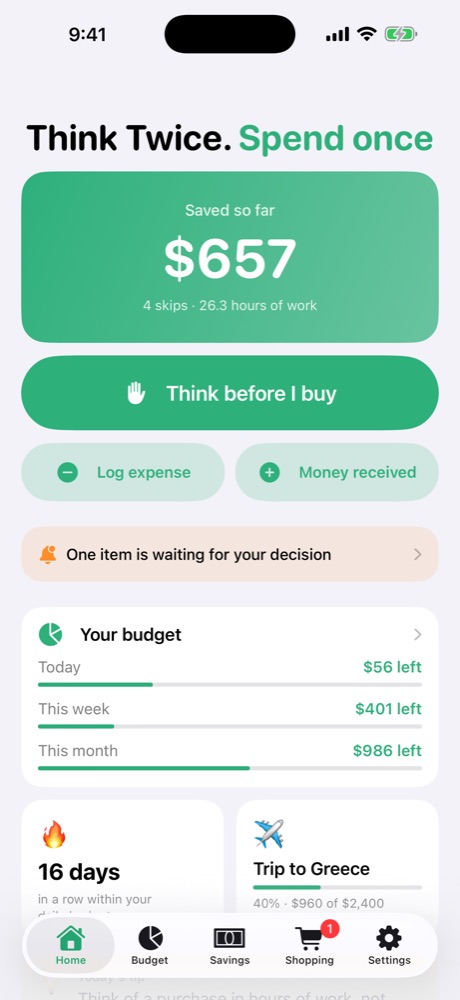
A full block can feel too strict, and many people end up turning it off. ThinkTwice! uses Apple's Screen Time technology differently: when you open a shopping app you chose, a short "Think twice" screen appears first. You can answer a few quick questions, or choose "Just browsing" to open the app for a few minutes. It's a pause, not a punishment.
To set it up: in ThinkTwice! go to Settings → Shopping apps, choose the apps and allow Screen Time access. The app doesn't see which apps you use and keeps no usage history.
אפליקציות קניות בנויות כדי שנפתח אותן הרבה: התראות, מבצעים יומיים, תשלום בלחיצה אחת. לא חייבים למחוק אותן. כמה שינויים באייפון יכולים להפוך אותן להרבה פחות מפתות.
1. לכבות להן התראות
נכנסים להגדרות ← עדכונים, בוחרים את אפליקציית הקניות ומכבים את אפשר עדכונים. אין יותר התראות "המחיר ירד!" שמושכות פנימה.
2. להזיז אותן מהמסך הראשי
לחיצה ארוכה על האייקון ← הסר את היישום ← הסר ממסך הבית. האפליקציה נשארת בספריית היישומים, אבל לא פותחים אותה מתוך הרגל.
3. למחוק כרטיסים שמורים
מוחקים את כרטיסי האשראי השמורים בתוך אפליקציית הקניות. הצורך להקליד את פרטי הכרטיס הוא עצירה קטנה אבל יעילה.
4. להגדיר מגבלה בזמן מסך
- פותחים הגדרות ← זמן מסך ומפעילים.
- לוחצים הגבלות יישומים ← הוסף מגבלה.
- בוחרים את אפליקציות הקניות וקובעים זמן יומי, למשל 10 דקות.
כשהזמן נגמר, האפליקציה ננעלת עד סוף היום (אפשר עדיין לבחור להתעלם מהמגבלה).
5. מסך עצירה במקום חסימה מלאה
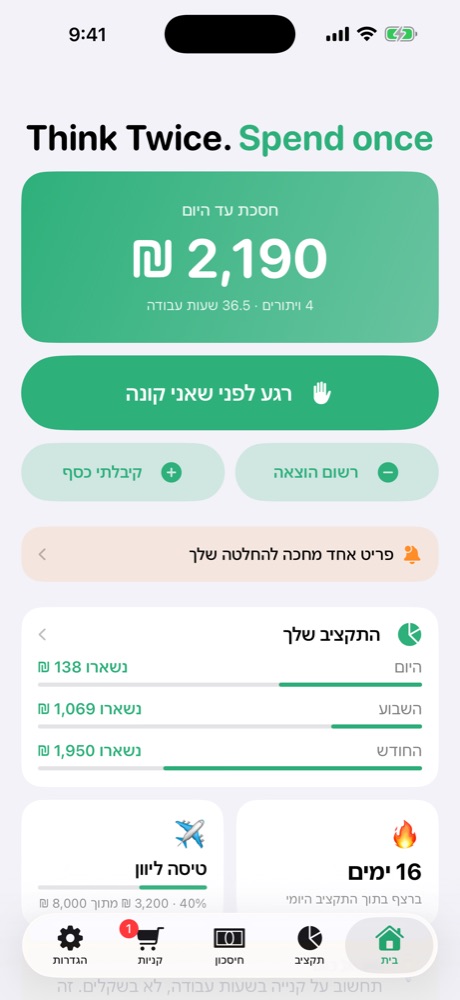
חסימה מלאה יכולה להרגיש נוקשה מדי, והרבה אנשים בסוף מכבים אותה. ThinkTwice! משתמשת בטכנולוגיית זמן המסך של אפל בצורה אחרת: כשפותחים אפליקציית קניות שבחרתם, מופיע קודם מסך קצר של "רגע לפני". אפשר לענות על כמה שאלות קצרות, או לבחור "סתם מסתכל" כדי לפתוח את האפליקציה לכמה דקות. זו עצירה, לא עונש.
ההגדרה: ב-ThinkTwice! נכנסים להגדרות ← אפליקציות קניות, בוחרים את האפליקציות ומאשרים את הרשאת זמן המסך. האפליקציה לא רואה באילו אפליקציות אתם משתמשים ולא שומרת היסטוריית שימוש.